
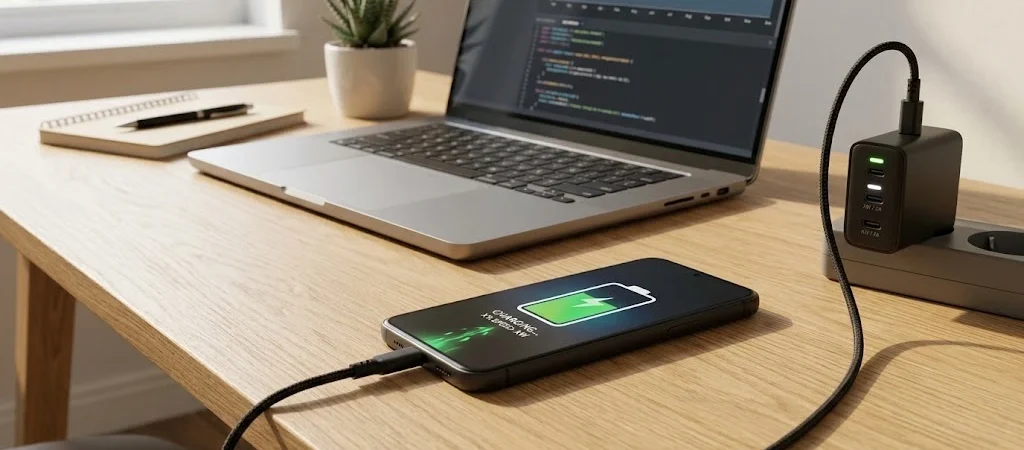
When a phone or laptop seems to charge more slowly than usual, the first question is usually simple: Is the charger actually working properly?
A charging test online can give you a quick way to observe what happens while your device is connected to power. Depending on the browser and device, an online test may show the current battery percentage, charging state, elapsed time, and other battery information that the system makes available.
But there is an important limitation. A browser-based charging test does not normally measure the actual electrical power flowing through the charger. It cannot reliably tell you that a charger is delivering a specific number of watts or amps.
That means an online charging test is best used as a practical observation tool, while a USB power meter or dedicated diagnostic equipment is better for measuring electrical output.
This guide explains how to perform a charging test online, how to make the result more useful, and how to work out whether a slow charging result is caused by the charger, cable, device, battery, temperature, or normal charging behavior.
What Does a Charging Test Online Actually Check?
A charging test online generally works by reading the battery information that your device and browser make available.
For example, an online battery test may be able to observe:
- Current battery percentage
- Whether the device reports a charging state
- Battery percentage changes over time
- Elapsed testing time
- Estimated charging information when the browser provides it
However, browser-based testing has limits. The Battery Status API, where supported, does not give a website direct access to every electrical characteristic of the charger. A browser test therefore should not be treated as a professional wattage or amperage measurement.
Think of it this way:
Online test = what the device appears to be doing
Power meter = how much electrical power is actually being delivered
That distinction is important when troubleshooting slow charging.
Can You Really Test Charging Speed Online?
Yes, but the result needs to be interpreted correctly.
You can use an online charging test to observe how much the battery percentage changes during a controlled period. For example, if a phone starts at 35% and reaches 52% after 30 minutes, you have recorded a 17 percentage-point increase during that session.
That can be useful when comparing two chargers or checking whether a device is charging consistently.
It is not the same as measuring charging power in watts.
Charging speed can also change throughout a charging session. Google notes that charging speed can depend on factors such as device usage, battery age, and ambient temperature.
So one short test should not automatically be treated as a definitive diagnosis.
A Simple Way to Run Your Own Charging Test
You do not need complicated equipment to perform a useful timed charging test.
The goal is to keep the conditions as consistent as possible and compare the battery percentage before and after charging.
Step 1: Choose the Charger and Cable
Start with the charger and cable you normally use.
If you are troubleshooting a suspected problem, make a note of:
- Charger type
- Cable type
- Power source
- Wired or wireless charging
- Device model
- Starting battery percentage
For a comparison, test one charger at a time rather than changing the cable, adapter, and power source simultaneously.
Step 2: Record the Starting Battery Percentage
Check the battery percentage before beginning.
A starting level somewhere in the middle of the battery range can make comparison easier because charging behavior may change as the battery gets closer to full.
Write down the starting percentage.
For example:
Starting level: 40%
Step 3: Connect the Device to Power
Connect the charger directly to the device.
For a more controlled result, use a wall outlet instead of a computer USB port or another device that may provide a different amount of power.
Google specifically notes that other power sources, including laptops, can sometimes charge a Pixel more slowly than a suitable wall charger.
Step 4: Open the Online Charging Test
Open a reputable browser-based battery or charging test and allow it to observe the battery information your device makes available.
If the browser supports the necessary battery information, the test may be able to show whether the device is charging and whether the battery percentage changes during the observation.
Step 5: Keep the Device Conditions Stable
Leave the device in roughly the same condition during the test.
Avoid:
- Playing demanding games
- Streaming high-resolution video
- Running intensive apps
- Repeatedly turning the screen on
- Using mobile features heavily
- Moving the device between hot and cool environments
The reason is simple: your device is using energy while it is charging.
If the phone is consuming significant power at the same time, the battery percentage may rise more slowly even when the charger and cable are working normally.
Step 6: Test for a Fixed Period
A 30-minute test is a practical starting point.
Record the battery percentage at the end.
For example:
Starting level: 40%
Ending level: 57%
Increase: 17 percentage points
This does not mean the charger delivered a constant electrical wattage throughout those 30 minutes. It simply tells you what happened to the battery percentage during the test.
Step 7: Repeat the Test if the Result Looks Unusual
If the result seems much slower than expected, repeat the test under similar conditions.
A single result can be affected by temperature, background activity, battery level, charging optimization, cable condition, or other variables.
Two or three consistent tests are more useful than one isolated number.
Why Charging Speed Changes During a Test
One of the easiest mistakes is expecting charging to happen at exactly the same rate from start to finish.
Modern devices can adjust charging behavior depending on several conditions.
Battery Level Matters
A device may charge differently at a low battery level than when it is close to full.
As the battery approaches its upper charge range, charging can slow down as part of the device’s charging management.
This is one reason a 20-minute test at 25% should not automatically be compared with a 20-minute test at 90%.
Temperature Can Change the Result
Heat can affect charging behavior.
Google’s charging documentation notes that charging speed depends partly on ambient temperature, and Pixel devices can adjust charging behavior to help manage temperature.
If your phone becomes noticeably warm during testing, do not assume the charger has suddenly become defective.
Using the Device While Charging Uses Power
A phone doing demanding work while connected to a charger has two things happening at once:
Power is coming in.
Power is being consumed.
The battery percentage reflects the net result.
This is why a phone may appear to charge slowly while gaming or running other intensive tasks.
Charger and Cable Compatibility Matters
The charger may support a high maximum output, but the device does not necessarily draw that maximum amount.
The cable, charging standard, device hardware, temperature, battery level, and charging software can all affect the actual result.
Apple, for example, recommends appropriate USB-C Power Delivery equipment for faster wired charging on supported iPhone models.
Online Charging Test vs. Real Power Measurement
This is where many charging tests become confusing.
An online tool can help you observe charging behavior, but it should not be presented as a professional electrical meter.
| Testing method | What it can tell you | Main limitation |
|---|---|---|
| Online charging test | Battery percentage and charging state over time | Does not directly measure watts |
| Timed charging test | Battery percentage gained during a fixed period | Result depends on device conditions |
| Device battery settings | Charging status and system information | Information varies by device |
| Manufacturer diagnostics | Device-specific charging or battery information | Availability differs by manufacturer |
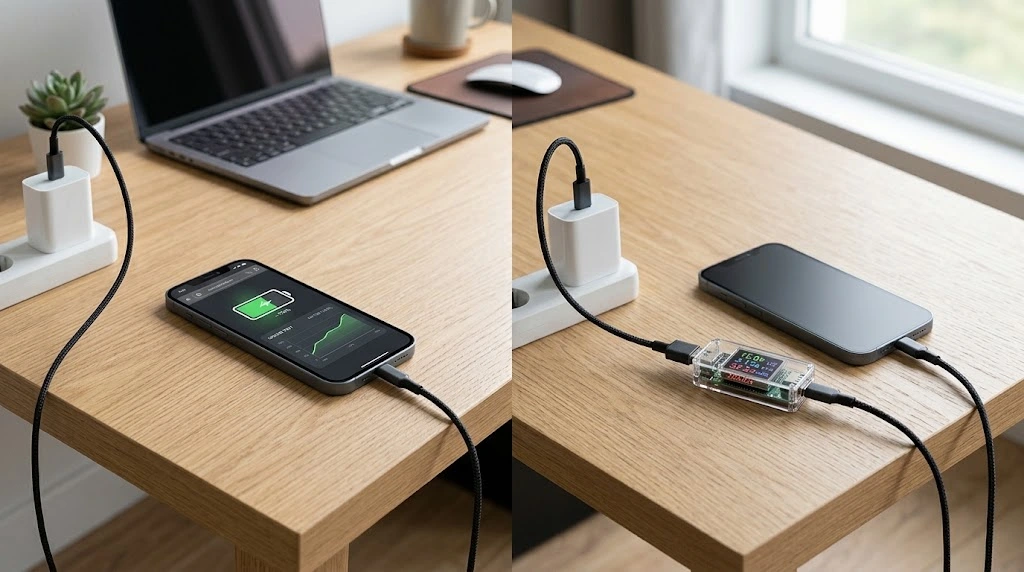
| USB power meter | Electrical power such as voltage, current, and estimated wattage | Requires additional hardware |
A browser-based charging test can therefore be a useful first step, especially when you simply want to know whether the device is recognizing incoming power and whether the battery percentage is changing.
If you need to investigate the actual electrical output of a charger, additional hardware is more appropriate.
What a Slow Charging Test Result Can Tell You
A slow result does not automatically mean your battery is bad.
It gives you a reason to investigate.
Start with the easiest possibilities:
- Check the cable.
- Try another compatible charger.
- Use a wall outlet.
- Check whether the device is hot.
- Reduce heavy device usage during charging.
- Repeat the test at a different battery level.
- Check the device’s battery and charging settings.
- Look for battery-health information.
For a broader explanation of battery condition and what battery percentages actually mean, see our battery health guide.
The important point is to separate charging performance from battery condition. A device can have a healthy battery but a poor charging setup, or a working charger can be connected to a battery that has significantly aged.
How to Check Whether the Charger or Cable Is the Problem
When charging seems slow, test the accessories before assuming the device itself is defective.
Try Another Cable
A damaged or incompatible cable can affect charging performance.
If another known-good cable produces a noticeably different result, the original cable deserves closer attention.
Try Another Compatible Charger
Use a charger that is appropriate for your device.
Do not assume that a higher wattage printed on the charger automatically means the device will charge faster.
The device still determines how much power it can accept.
Try a Different Power Outlet
The simplest test is sometimes the most useful.
Move the charger directly to a known-working wall outlet and repeat the charging test.
Inspect the Charging Port
Dust or debris inside a charging port can interfere with a proper connection.
If the connector does not sit correctly or charging repeatedly disconnects and reconnects, the port should be inspected carefully.
Avoid forcing objects into the port.
Why a Higher-Wattage Charger May Not Solve Slow Charging
Seeing a 65W, 100W, or higher number on a charger does not guarantee that your phone will charge at that power level.
The device has its own charging limits and compatibility requirements.
For example, Google explains that Pixel charging speed depends on factors including the phone, charger, cable, battery age, usage, and temperature.
This means buying a charger with a larger number on the box is not always the answer.
A properly compatible charger and cable are often more important than simply choosing the highest wattage available.
Charging Test on an iPhone
iPhones provide their own charging information, and newer iOS versions can provide estimated charging time.
Apple says that with iOS 26, users can see an estimate of the time needed to charge to 80%, 100%, or a configured charge limit from the Battery settings and, in some cases, the Lock Screen.
For a practical test:
- Record the starting percentage.
- Connect a compatible charger.
- Keep usage consistent.
- Record the battery level after a fixed period.
- Compare the result with another charger if necessary.
This gives you a more useful comparison than simply looking at the charger wattage.
Charging Test on Android Phones
Android charging behavior varies between manufacturers and models.
On Pixel devices, Google recommends using a compatible USB-C cable and suitable power adapter. Google also notes that charging speed can change depending on the charger, cable, device usage, battery age, and temperature.
The same basic testing method works well:
Record → charge → wait → record again → compare.
For a more complete diagnosis, combine the charging test with your phone’s built-in battery information.
Charging Test on a Laptop
The same concept can be applied to laptops, but laptop charging behavior can be more complicated.
A laptop may:
- Consume considerable power while being used
- Charge differently under heavy workloads
- Limit charging at certain battery levels
- Use smart charging features
- Change power behavior depending on the charger
- Require a specific USB-C Power Delivery capability
For that reason, test a laptop under a reasonably light workload if you want to compare charging performance.
If you are investigating long-term battery condition rather than charging speed, battery monitoring is a separate part of the process.
Our guide to battery health monitoring explains how battery capacity, usage, cycle information, and other indicators can help you track battery condition over time.
How to Make Your Charging Test More Reliable
A little consistency makes the results much more useful.
Use these simple rules:
Keep the Starting Percentage Similar
Comparing 20% to 50% is generally more meaningful than comparing a test at 15% with another at 90%.
Use the Same Charger and Cable When Testing the Device
If you are trying to determine whether the phone itself is changing, keep the charging accessories constant.
Test in a Similar Temperature
Do not compare a cool indoor test with a test performed while the device is hot.
Reduce Background Activity
Close unnecessary intensive apps and avoid demanding tasks during the test.
Use a Fixed Testing Period
Thirty minutes is easy to repeat and compare.
Repeat Unusual Results
If one test looks dramatically different, run it again before drawing a conclusion.
Should You Test Charging All the Way to 100%?
Not necessarily.
For troubleshooting, you usually do not need to wait until the battery reaches 100%.
A shorter controlled test can be enough to compare charging behavior.
In fact, testing the same fixed period at a similar starting battery percentage can make charger comparisons easier.
A full charge test can still be useful when you want to evaluate the overall charging experience, but it takes much longer and introduces more variables as the battery approaches full.
Does an Online Charging Test Check Battery Health?
Not by itself.
Charging speed and battery health are related, but they are not the same measurement.
A battery-health check looks at information about the battery’s condition, such as capacity, degradation, cycle information, or manufacturer-specific health indicators.
A charging test looks at what happens while the device is receiving power.
You can have:
- A healthy battery with a slow charger
- An older battery with a perfectly working charger
- A good charger paired with an unsuitable cable
- A normal charging system that slows because the device is hot
That is why charging performance should be investigated separately from battery condition.
When a Charging Test Suggests a Bigger Problem
Consider further troubleshooting if you repeatedly see one or more of these signs:
- Battery percentage barely changes during normal charging
- Charging repeatedly starts and stops
- The device becomes unusually hot
- Multiple known-good chargers produce the same poor result
- The charging port feels loose
- The device reports an unsupported accessory
- Charging becomes dramatically slower than it used to be
At that point, an online test has done its job: it has helped you identify that something deserves closer attention.
The next step may be a device-specific diagnostic, a different charging accessory, or professional inspection.
Final Thoughts
A charging test online can be a convenient first step when you want to understand what your phone or laptop is doing while connected to power.
The most useful approach is not to treat the online result as a laboratory measurement. Instead, use it to observe the battery percentage and charging state over a controlled period.
Start with a known battery percentage, use a consistent charger and cable, keep the device under similar conditions, record the result after a fixed amount of time, and repeat the test when necessary.
If the result is unexpectedly slow, investigate the charger, cable, power source, temperature, device usage, and battery condition before assuming that one component has failed.
The real value of a charging test is not a single number. It is the ability to compare charging behavior under controlled conditions and narrow down what may be causing the problem.
Frequently Asked Questions
What is a charging test online?
A charging test online is a browser-based method for observing battery and charging information that your device makes available. Depending on browser and device support, it may show battery percentage, charging state, elapsed time, or other available information.
Can an online charging test measure watts?
Usually, no. A browser-based test can observe battery information but does not directly measure the electrical wattage being delivered by the charger. A USB power meter is more appropriate when actual electrical measurements are needed.
How long should I run a charging speed test?
A 30-minute test is a practical starting point. The important thing is to use the same testing period when comparing chargers or charging conditions.
Why does my phone charge slowly even with a fast charger?
Possible reasons include device compatibility, cable limitations, temperature, battery level, background activity, charging management, or the device’s own maximum charging capability. Google and Apple both note that real-world charging speed can vary from advertised or laboratory conditions.
Does a slow charging result mean my battery needs replacement?
Not necessarily. Slow charging can be caused by the charger, cable, power source, temperature, device usage, or charging controls. Check the battery’s health information separately before deciding that replacement is necessary.
Is an online charging test better than a USB power meter?
They serve different purposes. An online test is convenient for observing battery behavior, while a USB power meter is designed to provide electrical measurements. For basic troubleshooting, an online test can be a useful first step.