
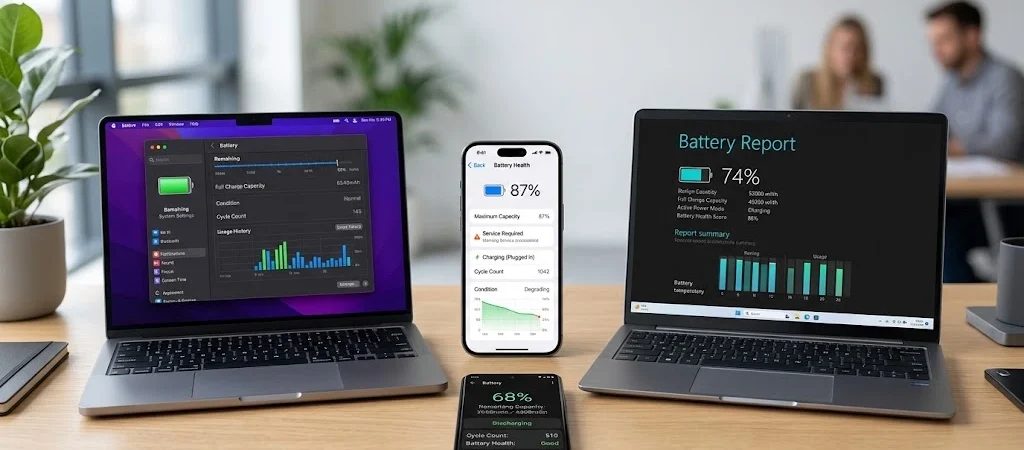
If your phone or laptop is losing charge faster than it used to, checking the battery health can help you understand whether the battery is aging or whether something else is causing the problem.
Battery health is different from the battery percentage shown in the status bar. A device can be charged to 100% while its battery has already lost some of the capacity it had when it was new.
Most modern devices provide built-in tools for checking battery condition. You can check battery health on an iPhone, run diagnostics on a Samsung Galaxy, view Battery Health on supported Google Pixel phones, generate a battery report in Windows 11, or check battery condition on a MacBook.
In this guide, you’ll learn how to check battery health on iPhone, Android, Windows 11, and Mac, how to understand the results, and what signs may indicate that a battery needs service.
What Is Battery Health?
Battery health describes how much usable capacity a battery retains compared with when it was new.
Most phones and laptops use rechargeable lithium-ion batteries. These batteries naturally lose capacity as they age. Charging and discharging, temperature, usage patterns, and time can all affect battery performance.
It helps to distinguish three related terms:
- Battery level: The amount of charge currently available.
- Battery health: An indication of the battery’s remaining capacity or condition.
- Battery cycle count: The number of completed charge cycles, when the device provides this information.
For example, a phone showing 100% battery level does not necessarily have 100% battery health. The 100% means the battery is fully charged according to its current capacity. It does not mean the battery still has the same capacity it had when new.
How to Check Battery Health on iPhone
Apple provides built-in battery health information on supported iPhone models.
iPhone 11, 12, 13, and 14
On supported models:
- Open Settings.
- Tap Battery.
- Tap Battery Health & Charging.
- Review Maximum Capacity and the available performance information.
Maximum Capacity compares the battery’s current capacity with its capacity when it was new.
As the battery chemically ages, its maximum capacity can decrease. This can result in shorter runtime between charges.
iPhone 15 and Later
On iPhone 15 models and later:
- Open Settings.
- Tap Battery.
- Tap Battery Health.
- Review the available battery information.
Supported iPhone 15 models and later can provide additional battery information, including maximum capacity, cycle count, battery manufacture date, and first-use date.
Apple says batteries in iPhone 14 models and earlier are designed to retain up to 80% of their original capacity at 500 complete charge cycles under ideal conditions. iPhone 15 models and later are designed to retain 80% at 1,000 complete charge cycles under ideal conditions. Actual capacity depends on how the device is used and charged.
For more information about Maximum Capacity, performance, and battery aging, see Apple’s iPhone battery and performance guide.
What Does iPhone Battery Health Mean?
A lower Maximum Capacity means the battery cannot hold as much charge as it could when new.
However, battery health percentage should not be the only factor you consider. Also look for:
- Very short battery life
- Unexpected shutdowns
- Charging problems
- Battery-related performance warnings
- A significantly degraded battery message
- A recommendation for battery service
If battery health has declined substantially and runtime has become impractical, battery service may be worth considering.
How to Check Battery Health on Android
Android does not have one universal battery-health menu that works across every manufacturer.
The exact method depends on the phone brand and model. Samsung Galaxy phones provide battery diagnostics through Samsung Members, while supported Google Pixel phones provide a dedicated Battery Health screen.
Other Android manufacturers may provide battery information through their own Settings menus or diagnostic tools.
If your Android phone does not display a battery-health percentage, use the manufacturer’s own diagnostic tools when available rather than relying entirely on estimates from third-party apps.
How to Check Battery Health on Samsung Galaxy
Samsung Galaxy phones can use the Samsung Members app to check battery condition.
To check the battery:
- Open the Samsung Members app.
- Tap Support.
- Open Phone diagnostics or the available diagnostics section.
- Run the battery diagnostic.
- Select Battery status.
- Review the result.
Depending on the Galaxy model and software version, the exact menu names may be different.
Samsung commonly reports battery condition using statuses such as:
- Normal: The battery is operating normally.
- Weak: Battery efficiency may have decreased because of long-term use or other factors.
- Bad: Battery condition has significantly degraded and professional service may be appropriate.
If your Galaxy phone suddenly loses charge quickly, shuts down unexpectedly, or displays a battery degradation warning, checking the diagnostic result can help determine whether the battery needs attention.
How to Check Battery Health on Google Pixel
Google provides a dedicated Battery Health feature on supported Pixel phones.
Pixel 8a and Later
On Pixel 8a and later:
- Open Settings.
- Tap Battery.
- Tap Battery health.
- Review the battery health status.
- Tap Battery capacity to see the estimated remaining capacity.
Google uses Normal and Reduced battery health statuses on supported Pixel devices.
Google’s current battery specifications state that Pixel 8a and later models are designed to retain up to 80% of their capacity for about 1,000 charge cycles. Pixel 3 through Pixel 8 Pro and Pixel Fold models are designed to retain up to 80% for about 800 charge cycles. Google recommends battery replacement when the remaining capacity falls below 80% or the rated cycle count is reached.
Check Pixel Battery Information
On Pixel 8a and later, you can check additional battery information by opening:
Settings → About phone → Battery information
Supported devices can show information such as battery manufacture date, first-use date, and cycle count.
Pixel Battery Diagnostics
Battery Health and Battery Diagnostics are separate features.
On supported Pixel devices, Battery Diagnostics can help investigate battery performance and charging issues.
If your Pixel is losing charge unusually quickly, checking battery usage and diagnostics can help determine whether the battery itself is the problem.
How to Check Battery Health on Windows 11
Windows 11 includes a built-in battery report that provides detailed information about battery usage and estimated capacity.
You do not need a third-party application to generate the report.
Generate a Windows Battery Report
- Open Start.
- Search for Command Prompt.
- Right-click Command Prompt and select Run as administrator.
- Enter:
powercfg /batteryreport
- Press Enter.
- Windows will display the location where the HTML report was saved.
- Open the report in your web browser.
Useful sections include Installed battery, Recent usage, and Battery usage.
How to Read the Windows Battery Report
Two of the most useful values are:
- Design capacity: The battery’s original intended capacity.
- Full charge capacity: The amount of charge the battery can currently hold according to Windows.
If the full charge capacity is significantly lower than the design capacity, the battery has lost some of its original capacity.
For example, if a laptop has a design capacity of 60,000 mWh and a full charge capacity of 45,000 mWh, it has retained approximately 75% of its original capacity.
This calculation helps you understand battery degradation. It should not be treated as a universal replacement threshold because battery behavior varies between devices.
How to Check Battery Health on MacBook
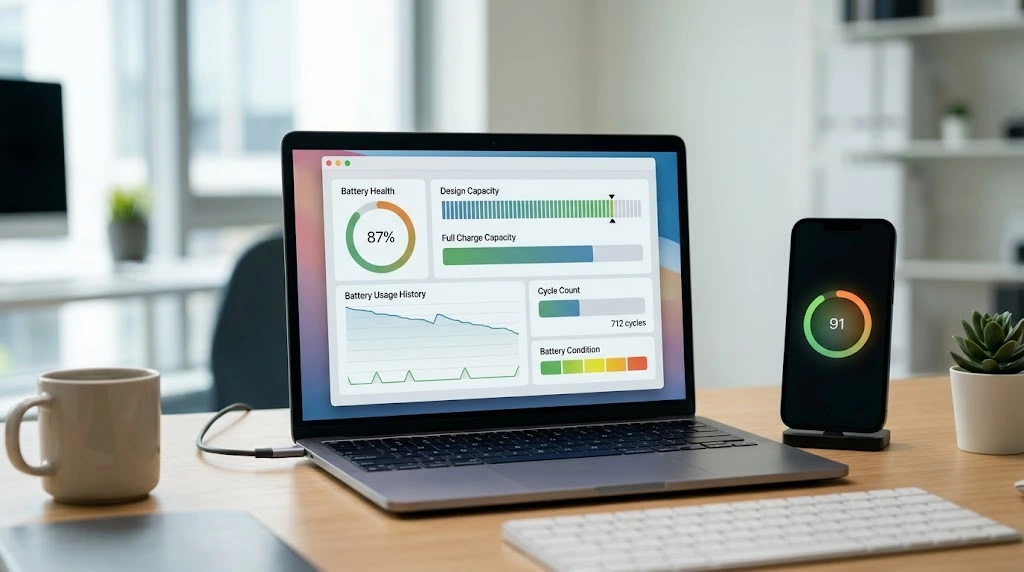
Mac laptops provide built-in battery information through macOS.
To check it:
- Open the Apple menu.
- Select System Settings.
- Click Battery.
- Find Battery Health.
Depending on the Mac model and macOS version, you may see conditions such as:
- Normal
- Service Recommended
Supported Macs may also display Maximum Capacity, which indicates the battery’s capacity relative to when it was new.
If your Mac shows Service Recommended and battery runtime has become noticeably shorter, battery service may be worth considering.
What Is a Good Battery Health Percentage?
There is no single percentage that applies equally to every phone, tablet, or laptop.
Different manufacturers use different measurements and service recommendations.
For example:
- Apple provides Maximum Capacity on supported iPhones.
- Samsung provides battery condition through Samsung Members diagnostics.
- Google uses Normal and Reduced on supported Pixel phones.
- Windows lets you compare design capacity with full charge capacity.
- Mac can display battery condition and Maximum Capacity on supported models.
An 80% capacity figure is an important reference point for some manufacturers, but it should not be treated as a universal rule that every battery below 80% must immediately be replaced.
Instead, consider:
- Remaining capacity
- Actual battery runtime
- Charge-cycle count
- Device age
- Charging behavior
- Unexpected shutdowns
- Battery warnings
- Manufacturer recommendations
Battery Health vs. Battery Life
Battery health and battery life are not the same thing.
Battery health describes the battery’s condition or remaining capacity compared with when it was new.
Battery life describes how long the device operates before it needs another charge.
A device can have reasonable battery health but still have poor battery life because of:
- High screen brightness
- GPS usage
- Mobile data
- Background apps
- Weak cellular signal
- High-performance games and applications
- Hot temperatures
- Recent software activity
- Excessive background processes
This is why checking battery health is only one part of diagnosing battery drain.
If battery health looks normal but your device is losing charge quickly, check the battery-usage screen to identify apps or features consuming an unusual amount of power.
Signs Your Battery May Need Replacement
A battery may need professional inspection when you notice several problems together.
Common warning signs include:
- Battery drains much faster than before
- Device shuts down unexpectedly
- Battery does not charge normally
- Battery diagnostics report a problem
- Device becomes unusually hot during normal use
- Battery visibly expands
- The device enclosure begins to separate or bulge
- The manufacturer recommends battery service
A swollen lithium-ion battery is a safety issue.
If a battery expands beyond the device enclosure, stop using the device. Do not press, puncture, bend, or otherwise physically manipulate the battery.
Do not attempt to repair or puncture a swollen battery yourself. Seek appropriate professional service instead.
How to Keep Your Battery Healthier
Battery aging is unavoidable, but sensible usage can reduce unnecessary battery stress.
Avoid Excessive Heat
High temperatures can accelerate battery aging.
Avoid leaving your phone or laptop in a very hot environment, especially while charging or performing demanding tasks.
Keeping the device in a moderate-temperature environment is one of the simplest ways to reduce unnecessary thermal stress.
Avoid Frequent Deep Discharges
You do not need to follow a perfect charging percentage every day.
When practical, avoid repeatedly allowing a lithium-ion battery to become completely depleted.
For long-term storage, keep the device in a cool, dry location and check its battery level periodically to reduce the risk of deep discharge.
Use Built-In Charging Management
Many modern devices provide charging-management features designed to reduce long-term battery wear.
Depending on the device, these can include:
- Optimized Battery Charging
- Adaptive Charging
- Charge Limit
- Battery Health Management
If your device provides one of these features, enabling it can be a practical way to manage long-term battery aging.
For readers who want to understand how different rechargeable battery chemistries work, our guide to lithium-ion and LiFePO4 battery chemistry provides additional background.
Quick Battery Health Check
| Device | Where to Check | Main Information |
|---|---|---|
| iPhone 11–14 | Settings → Battery → Battery Health & Charging | Maximum Capacity and performance |
| iPhone 15 and later | Settings → Battery → Battery Health | Maximum Capacity, cycle count, and battery information |
| Samsung Galaxy | Samsung Members → Phone diagnostics | Battery status |
| Google Pixel 8a and later | Settings → Battery → Battery health | Health status and estimated capacity |
| Google Pixel 6 and later | Battery Diagnostics, where supported | Battery and charging diagnostics |
| Windows 11 | powercfg /batteryreport | Battery capacity and usage report |
| MacBook | System Settings → Battery → Battery Health | Battery condition and, on supported Macs, Maximum Capacity |
Menu names can change with operating-system and app updates. If the path looks different on your device, check the manufacturer’s current documentation for your specific model.
Frequently Asked Questions
How do I check battery health?
The method depends on your device. iPhone has Battery Health settings, Samsung Galaxy uses Samsung Members diagnostics, supported Google Pixel phones provide Battery Health, Windows 11 provides a battery report, and MacBook has Battery Health under System Settings → Battery.
Is 80% battery health bad?
Not automatically. Battery capacity naturally decreases as lithium-ion batteries age. Some manufacturers use 80% as an important reference point, but battery service decisions should also consider runtime, cycle count, device age, warnings, and manufacturer recommendations.
How do I check battery health on Android?
There is no single battery-health menu shared by every Android phone. Samsung Galaxy users can use Samsung Members diagnostics, while supported Google Pixel phones provide Battery Health. Other Android manufacturers may provide their own battery information or diagnostic tools.
How do I check battery health on Windows 11?
Open Command Prompt as administrator and run powercfg /batteryreport. Windows will create an HTML report containing information about the installed battery, usage, and estimated capacity.
How do I check battery health on a MacBook?
Open Apple menu → System Settings → Battery and look for Battery Health. Depending on the Mac, you may see Normal, Service Recommended, and Maximum Capacity information.
What is the difference between battery health and battery life?
Battery health describes the battery’s condition or remaining capacity compared with when it was new. Battery life describes how long the device can operate before it needs another charge.
When should I replace my battery?
Consider battery service when the manufacturer recommends it, battery capacity has substantially declined, runtime has become impractical, or the device experiences battery-related problems.
If a battery is swollen or expanding, stop using the device and seek appropriate professional service rather than continuing normal use.
Final Thoughts
Knowing how to check battery health is a simple way to understand why a phone or laptop may not last as long as it once did.
The most reliable approach is to use the diagnostic tools provided by the device manufacturer. Check Battery Health on supported iPhones, Samsung Members on Galaxy phones, Battery Health or Battery Diagnostics on supported Pixel devices, the battery report on Windows 11, and Battery Health on MacBook.
Remember that battery health is only one part of the picture. If your device has poor battery life but the battery condition looks normal, investigate battery usage, apps, screen settings, connectivity, temperature, and other power-consuming features before assuming the battery needs replacement.
Battery menus and supported features can change as manufacturers release new devices and software. For the most accurate information, check the manufacturer’s current documentation for your specific device model.