
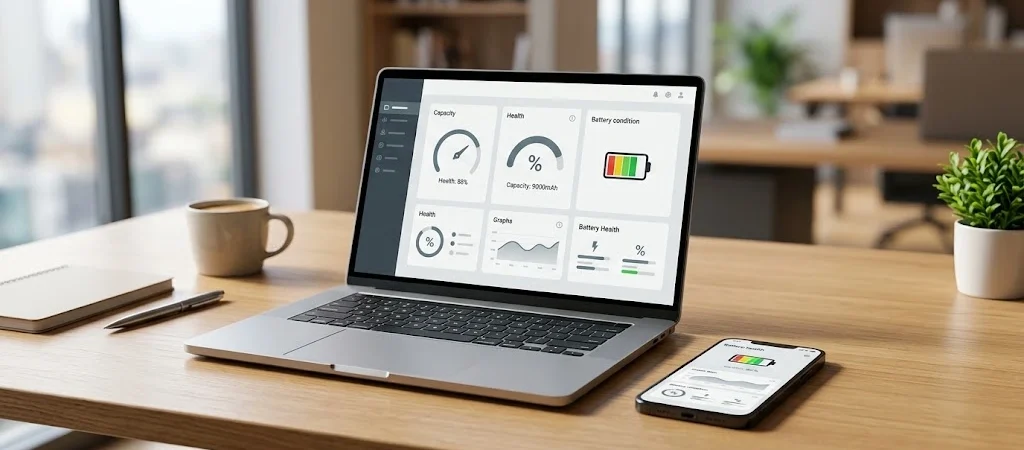
A battery can look perfectly fine on the outside and still be noticeably weaker than it was a year ago.
That is one reason battery problems can be confusing. You may see 70% on your phone and assume the battery is healthy, but that number only tells you how much charge is available right now. It does not tell you how much capacity the battery has lost over time.
A battery health monitor helps fill in that missing information. Depending on the device, it can show battery capacity, health estimates, charge cycles, temperature, usage patterns, charging behavior, or diagnostic warnings.
This information becomes especially useful when a phone no longer lasts through the day, a laptop suddenly needs its charger more often, or you are checking the condition of a used device.
The good news is that you usually do not need a specialized app to get started. iPhones, Android phones, Windows PCs, and Macs already provide different types of battery information.
This guide explains what a battery health monitor can actually tell you, how to check and track battery condition, how to interpret the numbers, and when battery replacement may be worth considering.
A Battery Percentage Does Not Tell the Whole Story
The battery percentage shown on your screen is one of the easiest battery measurements to understand, but it is also one of the easiest to misunderstand.
If your phone says 45%, it means the device estimates that roughly 45% of its currently available charge remains.
It does not mean the battery is still in 45% of its original condition.
Battery health is a different measurement. It is generally concerned with the battery’s remaining capacity compared with its original capacity.
Imagine a battery that could hold approximately 5,000 mAh when new. If its current estimated maximum capacity is around 4,000 mAh, it has retained roughly 80% of its original capacity.
The device can still show 100% when fully charged. The difference is that its 100% now represents less energy than it did when the battery was new.
That distinction is often the first thing worth understanding when investigating battery problems.
What a Battery Health Monitor Actually Watches
There is no single battery health measurement that works identically across every phone and computer.
A battery health monitor may bring together several pieces of information, depending on what the manufacturer makes available.
You might see:
- Current charge level
- Maximum or estimated battery capacity
- Battery health percentage
- Charge-cycle count
- Battery temperature
- Charging status
- Recent battery usage
- App-level power consumption
- Estimated remaining runtime
- Battery diagnostics
- Service or replacement recommendations
Some devices expose only a few of these measurements. Others provide considerably more detail.
That is why comparing a battery-health percentage from one manufacturer directly with a number from another can sometimes be misleading. The underlying measurements and reporting methods may differ.
For everyday troubleshooting, the most useful question is usually not “What is the number?” but “What does this number tell me about the way my device is behaving?”
When Battery Monitoring Becomes Genuinely Useful
Most people do not need to watch their battery statistics every day.
Battery monitoring becomes valuable when something changes.
For example, perhaps your laptop used to get through most of a workday but now needs to be plugged in before lunch. Or your phone suddenly loses a large amount of charge overnight.
A battery health monitor can help you work out whether the problem is related to battery aging or something else.
Your Device Does Not Last Like It Used To
Shorter runtime can be a normal consequence of battery aging.
As rechargeable lithium-ion batteries go through charging and discharging cycles, their ability to hold their original amount of energy gradually declines.
However, reduced runtime does not automatically mean the battery needs replacing.
A background app, poor cellular reception, high screen brightness, GPS use, gaming, video recording, or a recent software change can also increase power consumption.
You Are Checking a Used Phone or Laptop
Battery condition is one of those details that can easily get overlooked when buying a used device.
Two phones with the same model number can have very different battery conditions.
One may have spent years being heavily used and frequently charged. Another may have been used lightly and maintained in a cooler environment.
Checking available battery information gives you another piece of evidence when evaluating the device.
Your Device Is Behaving Strangely
Unexpected shutdowns, unusually fast drain, charging problems, or sudden changes in runtime are all reasons to look at battery information.
A monitor cannot diagnose every hardware problem, but it can help you decide whether battery degradation is worth investigating further.
Battery Health Numbers Need Context
A battery-health percentage is useful, but it should not be treated as a universal pass-or-fail score.
Manufacturers calculate and present battery condition in different ways.
Apple, for example, describes maximum capacity as the battery’s capacity relative to when it was new. Google also uses estimated remaining capacity when describing Pixel battery health.
That means a percentage should be considered alongside the device’s age, real-world runtime, cycle information where available, and manufacturer guidance.
A simple way to think about the information is:
| Battery condition | What it can suggest |
|---|---|
| Close to original capacity | Relatively little capacity has been lost |
| Moderately reduced capacity | Normal battery aging may be becoming noticeable |
| Significantly reduced capacity | Shorter runtime may become more apparent |
| Service or replacement warning | Manufacturer recommends further action |
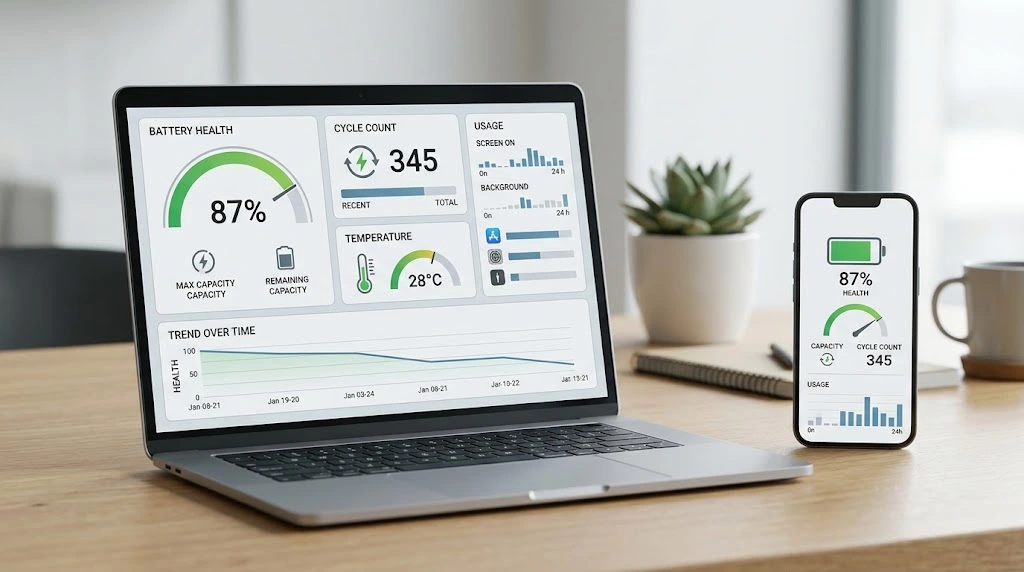
There is no single percentage that automatically means every battery must be replaced.
For a deeper explanation of percentages, capacity loss, cycle count, and battery degradation, see our guide to understanding your battery health results.
The important thing is to combine the battery-health reading with what you are actually experiencing.
How to Check Battery Health Without Guessing
Before installing a monitoring application, start with the tools already provided by your device manufacturer.
If you are unsure where to find those tools, our how to check battery health guide covers the main ways to check battery condition across common phones and computers.
The exact information available depends on the hardware and operating system.
iPhone Battery Monitoring
iPhones provide built-in battery information through the Battery settings.
On supported models, you can find battery-health information under:
Settings → Battery → Battery Health
Depending on the iPhone model and software version, Apple may provide information such as maximum capacity, cycle count, battery condition, performance information, and service recommendations.
For newer iPhone models, Apple provides additional battery information including cycle count and battery dates.
The useful part is not simply seeing a percentage. It is understanding whether the reported capacity and performance match the way the phone behaves in everyday use.
Android Battery Monitoring
Android is less uniform because manufacturers can provide different battery tools.
Some phones offer detailed health information, while others focus more heavily on battery usage and diagnostics.
Google Pixel devices provide a useful example. Supported Pixel models can show battery health and estimated capacity, while Pixel devices also provide Battery Diagnostics on supported models.
If a battery-health percentage is not available on your Android phone, battery-usage information can still be valuable.
Look for patterns such as:
- An app suddenly consuming much more power
- Heavy background activity
- Unusually high screen usage
- Poor cellular reception
- Excessive device temperature
- Battery drain occurring while the phone is idle
These clues can sometimes point to a power-consumption problem rather than a worn-out battery.
Windows Battery Monitoring
Windows provides one of the more detailed built-in options for checking laptop battery condition.
You can generate a battery report using the Windows powercfg command.
Open Command Prompt as administrator and run:
powercfg /batteryreport
Windows creates an HTML report containing battery information that can include installed batteries, recent usage, capacity information, and battery-life estimates.
One particularly useful comparison is:
Design Capacity
versus
Full Charge Capacity
Design capacity represents the battery’s intended capacity when new, while full-charge capacity represents what Windows currently estimates the battery can hold.
If the second number is substantially lower than the first, the battery has experienced capacity loss.
It is still an estimate, so the report should be considered alongside actual battery performance.
Mac Battery Information
MacBooks also provide built-in battery information.
Depending on the Mac model and macOS version, users can see battery condition and cycle-related information through Apple’s system settings.
This can be particularly useful if a MacBook that previously lasted through most of the day now requires frequent charging.
Before installing third-party monitoring software, Apple’s built-in battery information is a sensible place to start.
What Battery Monitoring Can Tell You About Battery Drain
One of the most useful things about monitoring a battery is that it can help separate capacity loss from power consumption.
These are not the same problem.
Consider two phones.
The first has reduced battery capacity because the battery has aged. It loses charge relatively quickly because the battery simply cannot store as much energy as it once could.
The second has a relatively healthy battery, but an app is running constantly in the background and consuming excessive power.
Both phones may have poor battery life.
The solution, however, could be completely different.
The first may eventually need a battery replacement. The second may need an app, setting, or software problem investigated.
That is why battery health information should be viewed together with battery-usage data.
Should You Use a Battery Health App?
Third-party battery monitoring software can be useful, but it should not automatically be your first choice.
Built-in manufacturer tools have an important advantage: they are designed around the device’s hardware and operating system.
A third-party application may be helpful if you want:
- Historical battery information
- Capacity tracking over time
- Temperature records
- Charge and discharge graphs
- Desktop notifications
- Additional battery statistics
However, an app cannot necessarily measure the physical condition of a battery directly.
Some values are calculated or estimated from available system information.
For that reason, manufacturer diagnostics should generally take priority when a third-party app and the device’s own information appear to disagree.
Look at the Trend, Not Just One Reading
A single battery-health reading can be useful, but tracking changes over time can provide more context.
Suppose a laptop reports a certain capacity today.
That number tells you something.
But if you record the same information several months later and notice a meaningful decline, you have a clearer picture of how the battery is aging.
You do not need to create a complicated spreadsheet.
For most users, simply checking battery information when a noticeable change occurs is enough.
The goal is not to obsess over every percentage point. The goal is to notice meaningful changes before they become a major inconvenience.
When Battery Problems Point Beyond Software
Battery monitoring is also useful because it can tell you when the problem may no longer be something a setting can fix.
Warning signs can include:
- A major reduction in normal runtime
- Repeated unexpected shutdowns
- A manufacturer battery-service warning
- Significant capacity loss
- Difficulty holding a charge
- Unusual heat during normal use
- Physical swelling
A swollen lithium-ion battery requires particular caution.
Do not squeeze, puncture, open, or attempt to repair a swollen battery yourself. If a battery has physically expanded, stop using the affected device when it is safe to do so and seek appropriate professional service.
Software can tell you about battery condition, but it cannot make a physically damaged battery safe.
Battery Health and Battery Life Are Not the Same Thing
The difference is simple but important.
Battery health describes the battery’s longer-term condition and remaining capacity.
Battery life describes how long the device can operate before it needs another charge.
A phone can have relatively good battery health and still have poor battery life.
Imagine using the phone for several hours of GPS navigation while recording video at high brightness. Heavy power consumption could drain the battery quickly even if the battery itself is in good condition.
The same thing can happen on a laptop during gaming, video editing, rendering, or other demanding workloads.
This is why replacing a battery should not be the automatic response to every battery-drain complaint.
What You Can Do to Slow Battery Aging
Battery aging is unavoidable, but everyday habits can influence how much stress the battery experiences.
Keep Temperature Under Control
Heat is one of the biggest factors worth paying attention to.
Avoid leaving a phone or laptop in a hot car, under direct sunlight, or in another environment where temperatures can become excessive.
A device that becomes unusually hot during charging or heavy workloads also deserves attention.
Use Built-In Charging Features
Many modern devices include charging-management features designed to reduce the amount of time the battery spends fully charged.
Depending on the device, you may see features such as optimized charging, adaptive charging, or an optional charging limit.
These features can be useful because lithium-ion batteries naturally age, and charging management can reduce some unnecessary battery stress.
Partial Charging Is Fine
You do not need to completely drain a modern lithium-ion battery before charging it.
A charge cycle is based on cumulative usage equivalent to 100% of the battery’s capacity, not necessarily one continuous discharge from 100% to 0%.
For example, using 50% of the battery today and another 50% tomorrow can add up to approximately one complete cycle.
Investigate Sudden Drain Before Replacing Anything
If battery health appears normal but runtime suddenly becomes poor, check battery usage first.
Look for apps consuming unusual amounts of power, excessive background activity, poor signal conditions, location services, display settings, or other recent changes.
Sometimes the battery is not the problem.
How Often Should You Monitor Battery Health?
For most people, checking battery condition every day is unnecessary.
A better approach is to check it when something changes.
Consider looking at battery information when:
- Battery life noticeably decreases
- You purchase a used device
- The device begins shutting down unexpectedly
- Charging behavior changes
- A battery warning appears
- You are considering a battery replacement
- You want to establish a baseline for an older device
If everything is working normally, there is little benefit in constantly watching the battery percentage.
Battery monitoring should help you make sense of a problem, not become another problem to manage.
Frequently Asked Questions
What Is a Battery Health Monitor?
A battery health monitor is a built-in system feature, diagnostic tool, application, or report that provides information about battery condition, capacity, usage, charging, or performance.
Is a Battery Health Monitor the Same as a Battery Percentage?
No.
Battery percentage shows the charge currently available. Battery health information describes the battery’s longer-term condition or remaining capacity.
Can a Battery Health Monitor Show Exact Battery Condition?
Not always.
Battery-health figures are generally estimates based on measurements and system calculations. They provide useful information, but they are not necessarily a perfect measurement of the battery’s physical condition.
Is 80% Battery Health Bad?
An 80% reading indicates that the battery has lost a meaningful amount of its original capacity, but the practical significance depends on the device and manufacturer guidance.
Google, for example, classifies supported Pixel batteries below 80% remaining capacity as Reduced.
The best approach is to consider the percentage together with runtime, device behavior, and any service recommendation.
What Is the Best Battery Health Monitor?
For most users, the device’s built-in battery-health and diagnostic tools are the logical starting point.
They are integrated with the hardware and operating system and can provide information that generic applications may not have access to.
How Can I Monitor My Laptop Battery?
Windows users can generate a battery report with:
powercfg /batteryreport
The resulting report can provide useful information about battery capacity, recent usage, and estimated battery life.
Mac users can use the battery information available through macOS system settings.
Should I Install a Third-Party Battery Monitoring App?
Not necessarily.
Start with the built-in tools. A third-party application can make sense if you need historical graphs, additional statistics, temperature tracking, or notifications that your operating system does not provide.
Final Thoughts
A battery health monitor is most useful when you treat it as a diagnostic tool rather than a number to check obsessively.
Battery percentage tells you how much charge you have right now. Battery-health information tells you more about how much capacity the battery has retained. Battery-usage information can then help explain where that power is going.
Together, these pieces of information give you a much clearer picture.
If your battery has aged but still provides acceptable runtime, you may not need to do anything immediately. If battery health is significantly reduced and the device is no longer meeting your needs, replacement may become worth considering.
And if battery health looks reasonable but the device suddenly drains quickly, investigate power consumption before assuming the battery itself has failed.
The most useful battery monitoring habit is simple: look at the numbers when your device gives you a reason to look, then compare those numbers with what you actually experience.