
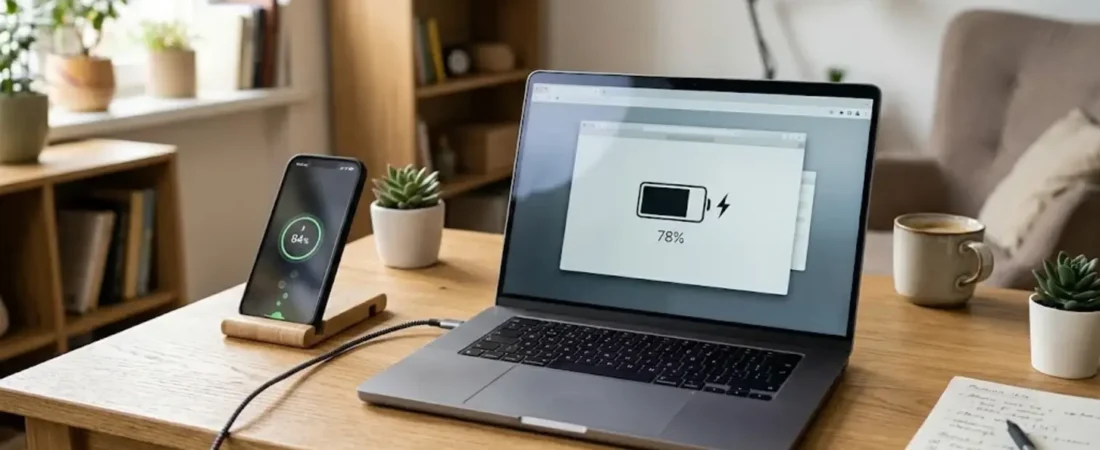
A battery can show 80% and still run down much faster than expected. A phone may say it is charging while the percentage barely moves. A laptop may reach 100%, yet its battery life can feel much shorter than it used to.
That is why checking the battery percentage alone does not always tell the full story.
A battery charge checker can help you understand your device’s current charge level, whether it is charging, and, on supported devices, additional information such as battery capacity, temperature, usage, or charging behavior. The important part is knowing what each reading actually means.
It also helps to separate three things that are often confused:
- Battery charge: How much energy is available right now.
- Battery health: How much capacity the battery can still hold compared with when it was new.
- Charging performance: How effectively the device and charger are replenishing the battery.
Once you understand those differences, battery readings become much easier to interpret.
What Does a Battery Charge Checker Actually Tell You?
A battery charge checker can refer to a built-in battery screen, diagnostic tool, operating-system report, or third-party utility that displays information about your battery.
The information available depends on your device, operating system, manufacturer, and software version.
Depending on the device, you may be able to see:
- Current battery percentage
- Whether the device is charging
- Estimated time remaining
- Battery usage by apps
- Battery capacity
- Battery temperature
- Charging status
- Battery cycle information
- Battery health or maximum capacity
- Power consumption information
- Battery-related warnings
For everyday use, the most important reading is usually the current battery charge level.
For troubleshooting, however, other readings can become much more useful.
For example, if your phone is at 75% but shuts down after only a few hours, the charge percentage itself may not explain the problem. Battery health, app usage, temperature, or charging behavior could provide better clues.
Battery Charge and Battery Health Are Not the Same Thing
This is one of the most important battery concepts to understand.
Battery charge tells you how much charge is available right now.
Battery health tells you how well the battery can store and deliver energy compared with its original condition.
Think of it like a water bottle.
If a new bottle holds 1 liter, filling it to 100% means you have 1 liter available.
If the bottle has deteriorated and can now hold only 700 ml, filling it to 100% still means the bottle is full. It simply does not hold as much as it once did.
| Reading | What it tells you | Example |
|---|---|---|
| Battery charge | Current available charge | 80% |
| Battery health | Remaining battery capacity or condition | 88% maximum capacity |
| Charging status | Whether power is entering the device | Charging |
| Battery temperature | Current battery/device temperature | May be elevated |
| Battery usage | What is consuming power | Display, apps, games |
| Cycle count | Accumulated charge-cycle activity on supported devices | 350 cycles |
If you want to learn how to measure the condition of the battery itself, see this guide on check battery health.
This distinction prevents a common mistake: assuming that a battery showing 100% charge is automatically a healthy battery.
When Should You Check Your Battery?
You do not need to constantly monitor your battery.
A battery charge check becomes useful when something changes in the way your device behaves.
Consider checking your battery when:
- Your device suddenly drains much faster than normal.
- The battery percentage drops unusually quickly.
- Your phone or laptop shuts down unexpectedly.
- Charging takes much longer than it used to.
- The device becomes unusually warm while charging.
- The battery gets stuck at a particular percentage.
- You recently bought a used phone or laptop.
- You are trying to determine whether a charger or cable is causing a problem.
- You want to understand which apps are consuming the most power.
- You are deciding whether a battery may need replacement.
A single unusual reading does not necessarily mean something is wrong. Look for a pattern over several charging cycles.
How to Check Your Battery Charge on a Phone
Most modern smartphones make checking the current battery charge very simple.
The exact menus can vary by device manufacturer and operating-system version, but the basic process is similar.
On Android Phones
The quickest way is normally to look at the battery indicator in the status bar.
Depending on your Android version and phone manufacturer, you may also be able to:
- Swipe down from the top of the screen.
- Open Quick Settings or the notification area.
- Look for the battery percentage or charging indicator.
- Open Settings.
- Select Battery or a similarly named battery section.
The Battery settings page can provide more information than the small status-bar icon.
You may see:
- Current charge percentage
- Estimated battery life
- Battery usage
- Apps consuming power
- Charging information
- Battery-saving settings
- Battery health information on supported models
Samsung, Google Pixel, and other Android devices can use different menu names and layouts, so do not worry if your phone does not match another Android tutorial exactly.
On iPhone
An iPhone normally displays its battery level in the status area.
You can also:
- Open Control Center.
- Check the battery percentage.
- Open Settings.
- Select Battery.
The Battery section provides additional information about usage and charging.
Remember that the current percentage is not the same as battery health. A phone can display 100% charge even when its maximum capacity has declined over time.
How to Check Battery Health When Your Charge Looks Normal
Sometimes the battery percentage looks perfectly normal but the device still does not last as long as it used to.
That is when battery health becomes more relevant.
Checking Battery Health on iPhone
On supported iPhone models and software versions, battery information can be found in the Battery settings.
Look for the battery health or battery health and charging section.
Depending on the device and software version, Apple can provide information such as maximum capacity and battery-related performance information.
The important point is to compare the battery’s present capacity with what the battery could hold when it was new.
Checking Battery Health on Android
Android battery-health information varies considerably between manufacturers and models.
Some phones provide dedicated battery health information in Settings. Others may provide charging, usage, or diagnostic information instead.
If your phone does not show a battery-health percentage, that does not automatically mean the battery is defective.
Manufacturer diagnostics or model-specific support information may provide a better answer.
For users who want to follow battery condition over time rather than check it only once, battery health monitoring can provide a more useful approach.
Checking Battery Information on Windows
Windows laptops provide a useful built-in battery report.
To generate one:
- Open Command Prompt.
- Run:
powercfg /batteryreport
- Windows will generate an HTML battery report.
- Open the report using the location shown by Command Prompt.
The report can include information about the battery’s design capacity, current full charge capacity, recent usage, and charging activity.
This can be particularly useful when a laptop battery appears to charge normally but its runtime has declined significantly.
What Does 100% Battery Charge Really Mean?
When a device reaches 100%, it means the operating system considers the battery fully charged according to its charging system.
It does not necessarily mean the battery is in perfect condition.
Imagine a battery that originally had a capacity of 5,000 mAh.
When new:
- Full capacity: about 5,000 mAh
- 100% charge: about 5,000 mAh available
After significant aging:
- Maximum capacity: perhaps about 4,000 mAh
- 100% charge: about 4,000 mAh available
The percentage can still reach 100%.
The difference is that the battery has less total capacity than it did when new.
This is why a device can reach 100% but provide noticeably less runtime than it once did.
Why Is My Battery Charging Slowly?
Slow charging can have several causes, and the battery percentage alone cannot identify the exact one.
Common possibilities include:
The Charger Does Not Provide Enough Power
Different chargers provide different power levels.
A charger that works adequately for one device may charge another device slowly.
The Cable Limits Charging
A damaged, low-quality, or incompatible cable can interfere with expected charging performance.
The connector may also be dirty or damaged.
The Device Is Being Used While Charging
Gaming, video calls, navigation, video streaming, or other demanding tasks can consume significant power while the charger is supplying energy.
As a result, the percentage may increase more slowly.
The Device Is Too Warm
Temperature can affect charging behavior.
Modern devices may reduce charging speed when conditions become too warm in order to protect the battery and hardware.
Charging Optimization Is Active
Some devices intentionally manage charging rather than immediately maintaining the battery at maximum charge for long periods.
This behavior can be part of battery-protection or charging-optimization features.
The Charging Port Has a Problem
Dust, debris, wear, or physical damage can interfere with the connection.
If charging repeatedly starts and stops or behaves inconsistently, the port deserves attention.
Why Does My Battery Drain So Quickly?
Fast battery drain can be caused by either normal heavy usage or a change in the device’s battery condition.
Common causes include:
- High screen brightness
- Long screen-on time
- Gaming
- Video streaming
- GPS and location services
- Background applications
- Frequent notifications
- Poor cellular signal
- High-performance settings
- Bluetooth or other connected accessories
- Software activity
- Battery aging
Start by checking battery usage before assuming the battery itself has failed.
If one application suddenly consumes far more power than expected, that may explain the problem.
If battery usage appears normal but runtime has steadily declined over months or years, battery capacity may be the more important factor.
Can a Battery Charge Checker Tell If a Battery Is Bad?
Not by looking at the charge percentage alone.
A battery at 90% could be perfectly usable, while another battery at 90% could have an underlying problem.
A better assessment considers several pieces of information together:
- Current charge level
- Maximum or full-charge capacity
- Battery usage
- Charging behavior
- Battery temperature
- Cycle information when available
- Unexpected shutdowns
- Runtime compared with normal usage
- Manufacturer diagnostics
- Physical battery condition
If a battery is swelling, separating the device housing, or becoming unusually hot, do not rely on software readings to determine whether it is safe.
How Accurate Are Battery Charge Readings?
Battery percentages are estimates rather than a direct measurement of remaining runtime.
Your device uses battery-management hardware and software to estimate the remaining charge.
That estimate can change based on:
- Battery age
- Temperature
- Current power consumption
- Recent charging behavior
- Battery calibration
- Hardware characteristics
- Software calculations
For this reason, a drop from 50% to 40% does not always correspond to exactly the same amount of runtime in every situation.
The percentage is most useful as a practical indicator rather than a promise of exactly how many minutes or hours remain.
Can Battery Voltage Tell You How Healthy a Battery Is?
Voltage can provide useful technical information, but it is not enough by itself to determine battery health.
Lithium-ion batteries operate within a voltage range that changes depending on charge level and operating conditions.
A voltage reading can therefore help with diagnostics, but interpreting it correctly requires additional information.
For most users, capacity, charge level, temperature, usage, charging behavior, and manufacturer diagnostics provide more useful context than looking at voltage alone.
If a third-party app shows voltage, do not assume that one number proves a battery is healthy or defective.
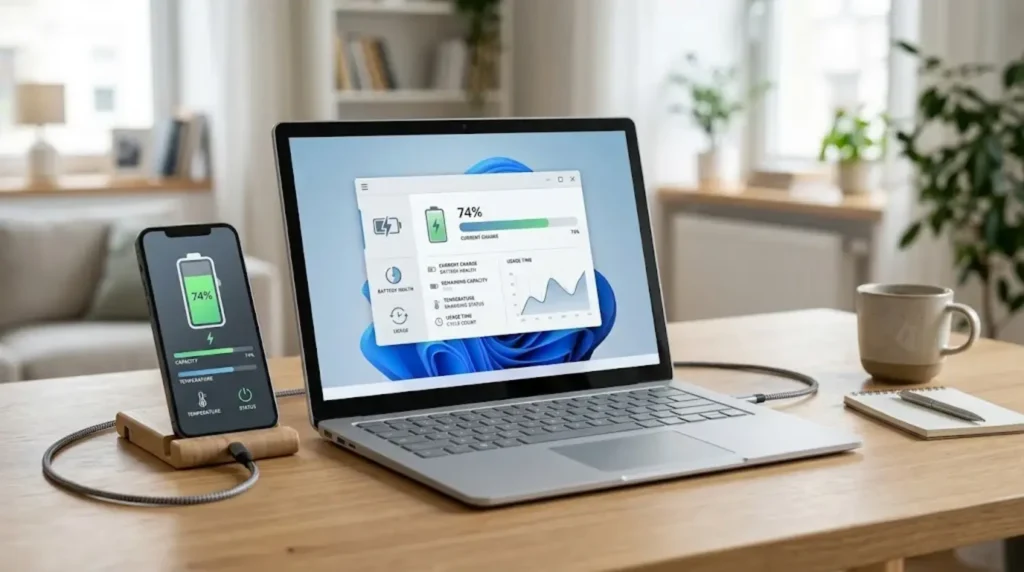
What Battery Readings Should You Pay Attention To?
If your device provides multiple battery readings, focus on the ones that help answer your specific question.
| Battery reading | Why it matters |
|---|---|
| Charge level | Shows how much charge is currently available |
| Maximum capacity | Helps show how much energy the battery can store compared with its original capacity |
| Cycle count | Shows accumulated charging-cycle activity when supported |
| Temperature | Can help identify unusually warm operating or charging conditions |
| Charging status | Shows whether the device is actively charging |
| Battery usage | Helps identify apps or features consuming unusual amounts of power |
| Estimated runtime | Gives a practical indication of remaining use under current conditions |
No single reading should automatically be treated as a complete battery diagnosis.
How to Get Better Battery Life
You do not need complicated battery tricks to improve everyday battery life.
A few practical habits can make a meaningful difference.
Keep the Device Cool
Excessive heat is not good for lithium-ion batteries.
Avoid leaving phones or laptops in very hot environments, especially while charging or under heavy workloads.
Use a Compatible Charger and Cable
Use charging equipment that is appropriate for your device.
If charging becomes unexpectedly slow, testing another compatible charger and cable can help determine whether the accessory is contributing to the problem.
Avoid Constant Deep Discharges
You generally do not need to run a battery completely empty before charging it.
Regularly allowing a device to reach extremely low charge levels is not necessary for normal modern lithium-ion battery use.
Use Charging Optimization Features
If your phone or laptop provides charging optimization, adaptive charging, or similar battery-protection features, consider using them.
These features are designed to manage charging behavior based on the device and usage patterns.
Check Which Apps Use the Most Power
Battery usage screens can reveal applications or services consuming more energy than expected.
If one app suddenly becomes a major power consumer, investigate that app before blaming the battery.
When Is It Time to Replace a Battery?
There is no single battery percentage that automatically means every battery should be replaced.
A replacement may make sense when battery capacity has declined significantly and the reduced runtime is interfering with normal use.
Other warning signs include:
- Very short runtime despite normal usage
- Frequent unexpected shutdowns
- Significant performance problems associated with the battery
- Persistent charging problems
- Unusual heat
- Battery-related warnings from the manufacturer
- Physical swelling or deformation
Important Safety Warning
If a lithium-ion battery is visibly swollen, do not continue using or charging the device just to test it.
Do not puncture, squeeze, or attempt to remove a swollen battery unless you are qualified to do so.
A damaged or swollen battery should be handled according to the device manufacturer’s safety guidance or by a qualified repair professional.
Should You Use a Third-Party Battery Checker?
Third-party battery tools can be useful when your device’s built-in information is limited.
They may display technical information such as:
- Battery capacity
- Voltage
- Temperature
- Charging current
- Battery cycles
- Estimated health
- Power consumption
However, third-party software should be treated as a diagnostic aid rather than an unquestionable authority.
Different applications may calculate battery health differently, and some readings may depend on what information the operating system makes available.
For most people, the best approach is to start with the device’s built-in battery information and manufacturer diagnostics, then use a reputable third-party tool if additional technical details are needed.
Battery Charge Checker FAQs
What is a battery charge checker?
A battery charge checker is a tool or built-in device feature that helps you view the current battery charge and, depending on the device, additional information such as charging status, capacity, temperature, usage, or battery health.
How do I check my current battery charge?
On most phones, look at the battery indicator in the status bar or open the notification area or Control Center. You can also open the device’s Battery settings for additional information.
Is battery charge the same as battery health?
No. Battery charge describes how much charge is available right now, while battery health describes the battery’s ability to hold capacity compared with its original condition.
Why does my battery say 100% but drain quickly?
A battery can reach 100% charge even when its maximum capacity has declined. Heavy app usage, high brightness, poor signal, temperature, and battery aging can also cause faster drain.
Can I check battery health on Android?
It depends on the phone manufacturer and model. Some Android devices provide battery-health information directly in Settings, while others provide different diagnostic information.
How can I check battery information on Windows?
Windows can generate a battery report using the powercfg /batteryreport command in Command Prompt. The resulting HTML report can provide information about battery capacity and usage.
Does a battery charge checker measure charging speed?
Not necessarily. Some battery tools provide charging-current or charging information, but a simple battery percentage display does not directly measure charging speed.
Why is my battery charging slowly?
Possible causes include a low-power charger, cable limitations, device usage, heat, charging optimization, or a problem with the charging port or accessories.
Is a 100% battery reading always accurate?
It is an estimate produced by the device’s battery-management system. It is useful for everyday decisions but should not be interpreted as an exact measurement of remaining runtime.
Can a battery checker tell me when to replace my battery?
It can provide useful clues, but replacement decisions should consider capacity, runtime, charging behavior, unexpected shutdowns, temperature, physical condition, and manufacturer guidance rather than one reading alone.
The Best Way to Check Your Battery
The most useful battery check is not simply asking, “What percentage is left?”
Start with the current charge level. Then consider what the device is doing, how quickly the percentage is changing, and whether charging behaves normally.
If the device still feels different from when it was new, look at battery health and capacity. If the problem appears during charging, investigate the charger, cable, temperature, and charging behavior. If the battery drains unusually fast, check usage information before assuming the battery has failed.
A battery charge checker is most useful when you treat its readings as pieces of a bigger picture. Current charge tells you where the battery is now. Health tells you how much capacity it has left. Usage and charging information help explain why the battery may be behaving differently.
That combination gives you a much clearer way to decide whether your battery is operating normally, needs closer monitoring, or may eventually need replacement.